

Time to complete: 5 minutes
This guide walks you through sending your first Slack message from Val Town.
This guide uses Slack’s incoming webhooks to send messages to a Slack channel. For more complex interactions, like responding to user messages or handling buttons, check out our Slack bot guide.
1. Create a Slack app & webhook
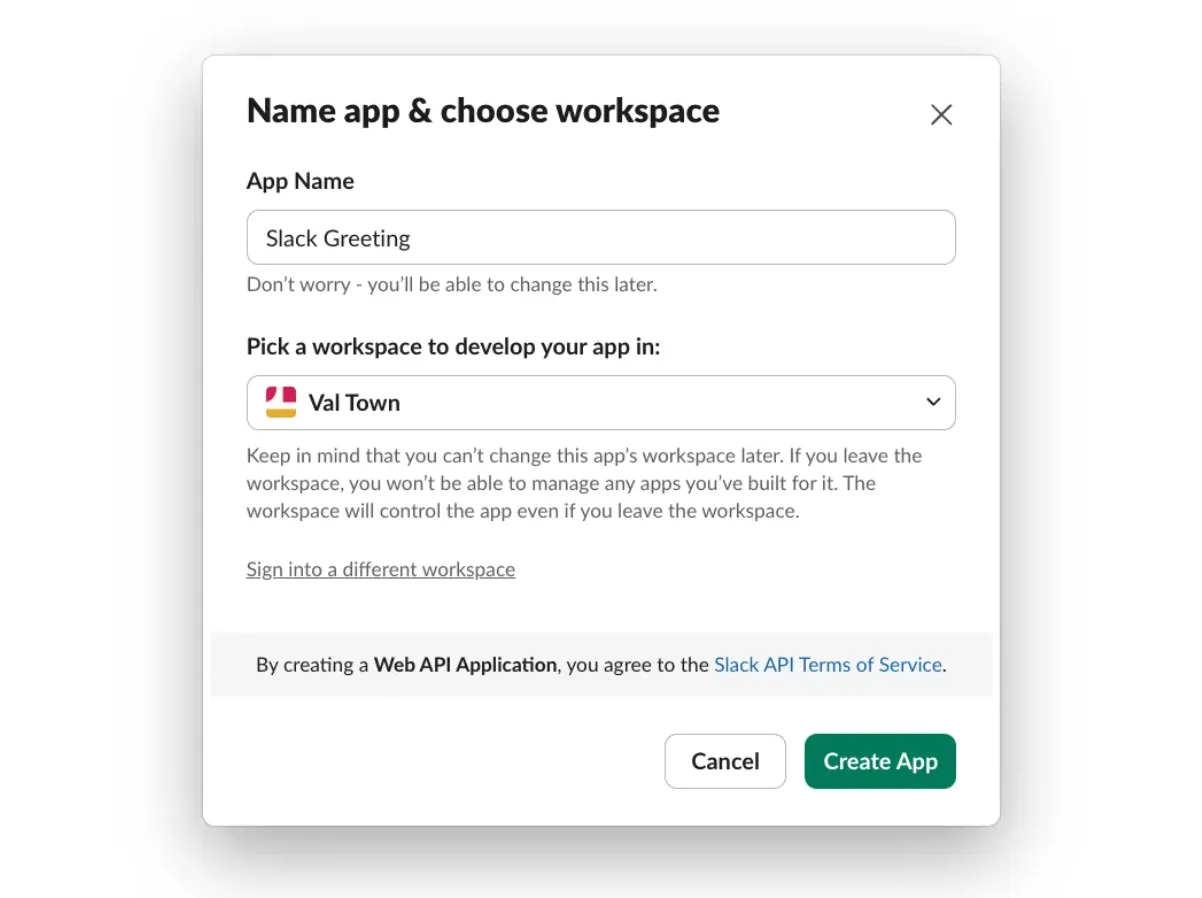
Section titled “1. Create a Slack app & webhook”- Click here to create a new Slack app
- Click From Scratch
- Type an App Name
- Select your Slack workspace
- Click Incoming Webhooks in the left sidebar of your app (under Features)
- Toggle Activate Incoming Webhooks to On
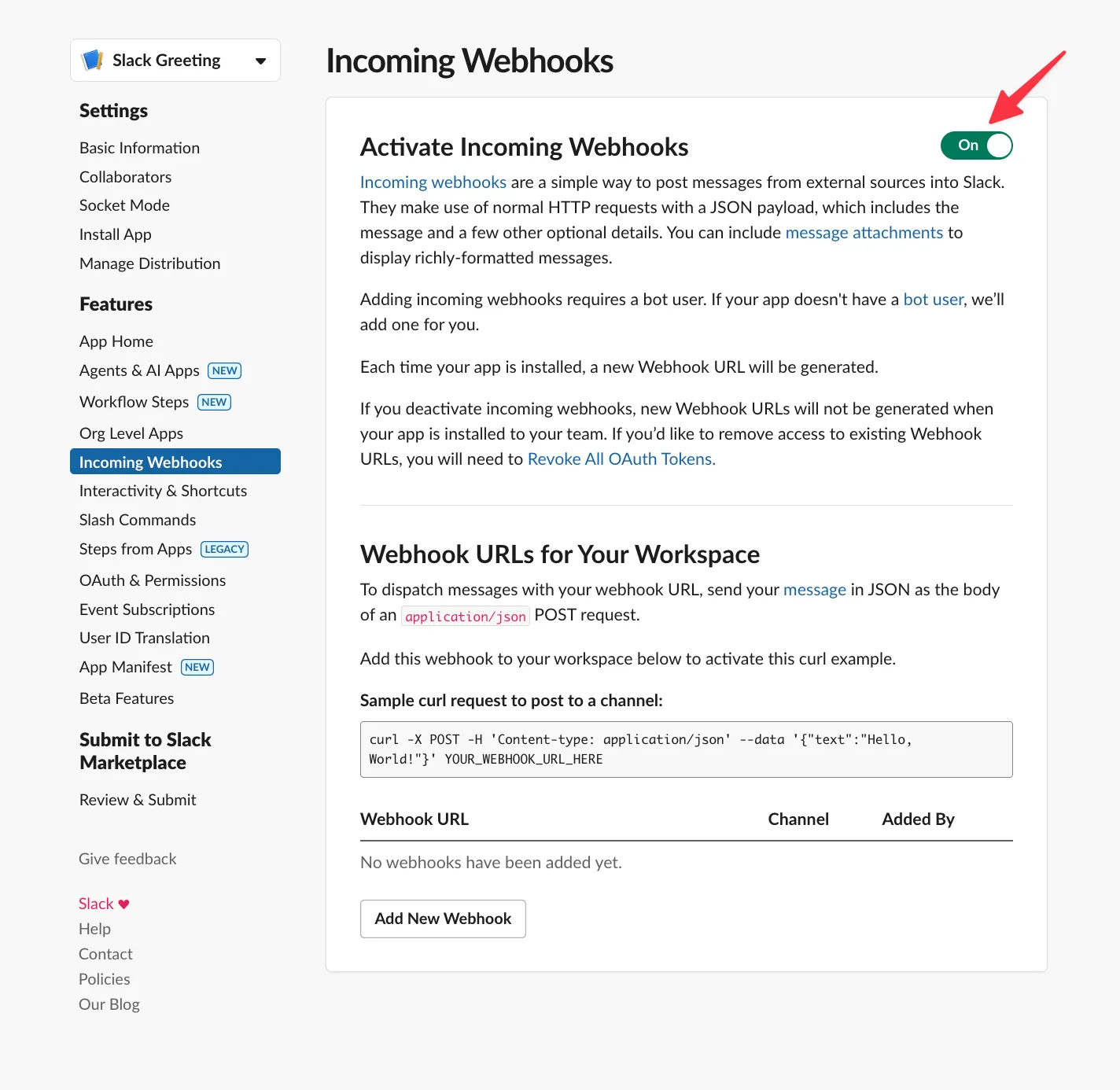
- Click Add New Webhook at the bottom of the page
- Select your target channel
- Copy the Webhook URL from Slack
- (Bonus) Customize the App icon under Basic Information in the left sidebar (Val Town icons)
2. Add the webhook URL to Val Town
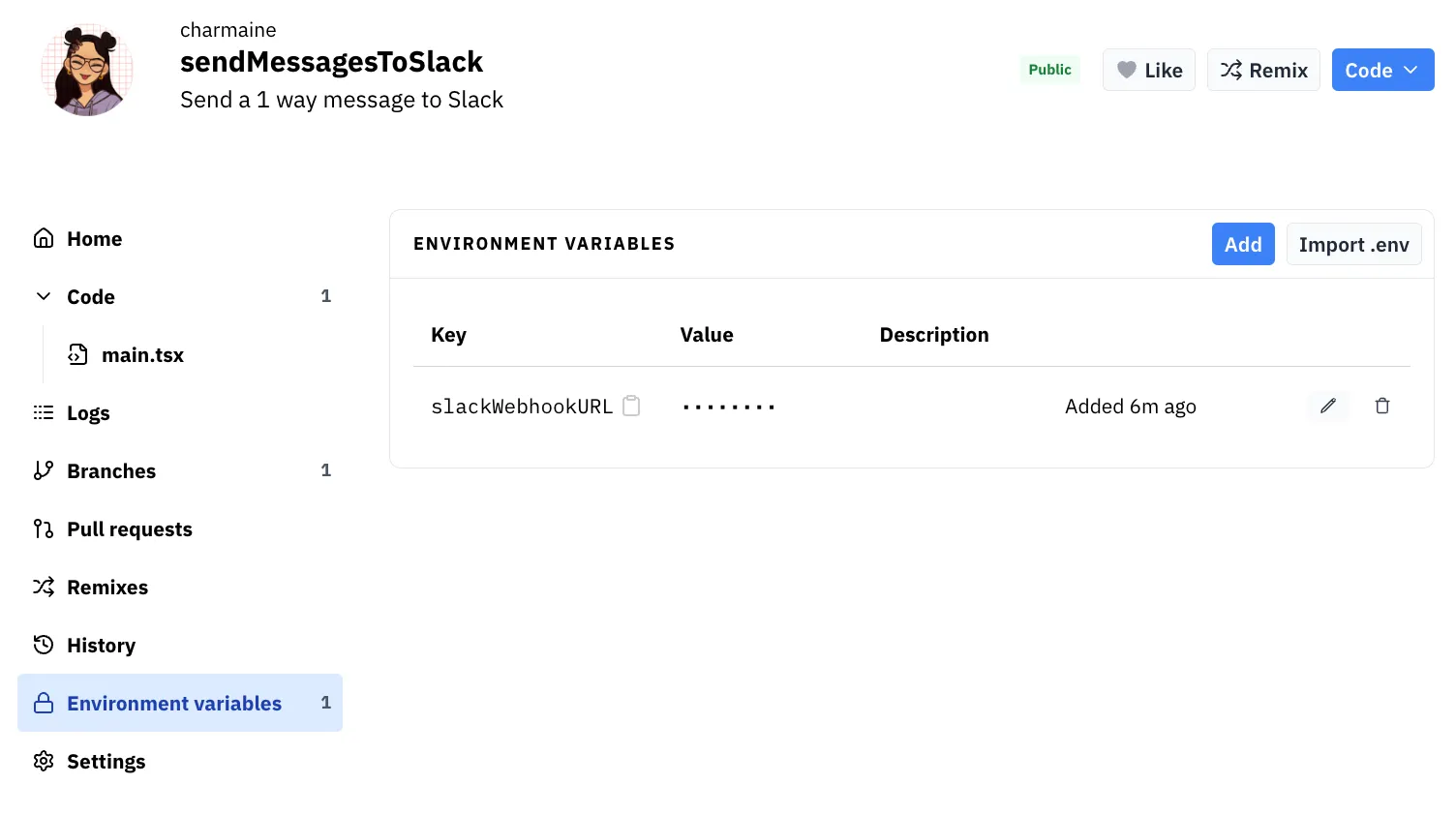
Section titled “2. Add the webhook URL to Val Town”- Click Environment Variables in your val’s left sidebar
- Add a new env variable with key: SLACK_WEBHOOK_URL
- Paste the webhook URL you copied from Slack as the value
3. Send a message
Section titled “3. Send a message”Now you’re ready to send your first message to Slack!
import { IncomingWebhook } from "npm:@slack/webhook";
const slack = new IncomingWebhook(Deno.env.get("SLACK_WEBHOOK_URL"));const EDIT = `<${import.meta.url.replace("esm", "val")}|(edit val)>`;await slack.send(`🥳 Hi from Val Town! ${EDIT}`);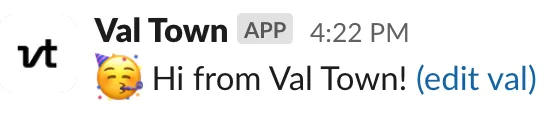
We recommend including this link to the edit val, so everyone on your team is one click away from making changes.
What’s next?
Section titled “What’s next?”Learn how to make your message fancy with advanced formatting.
Take this a step further by responding to mentions, slash commands, buttons, and other user interactions with our full Slack bot guide!
You can find more Slack examples on our Templates page.