ChatGPT
Use the Val Town plugin to work with your vals in ChatGPT on the web or desktop.
Install the plugin
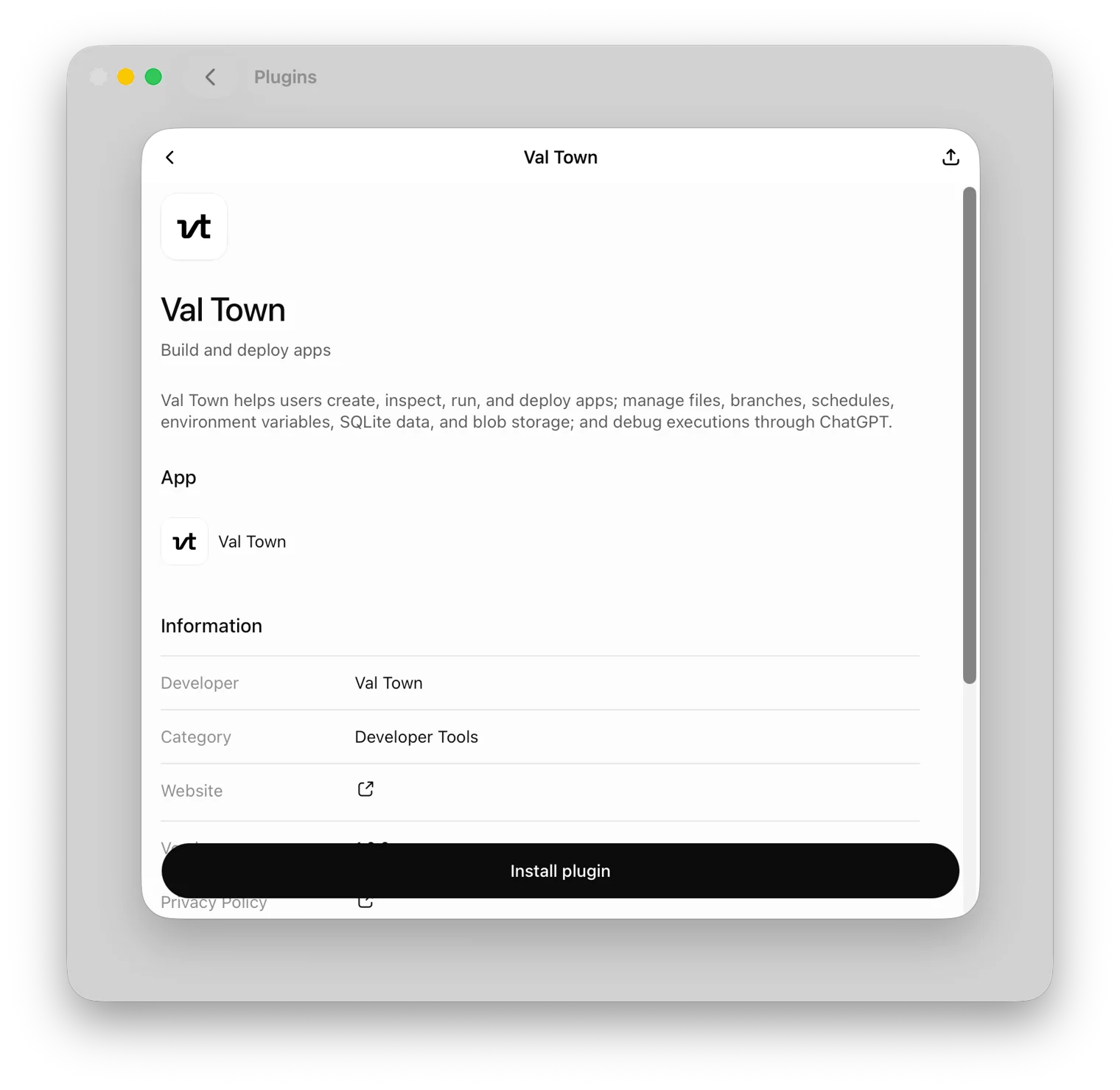
Open the Val Town Plugin in ChatGPT, sign in to ChatGPT if needed, and select Install plugin.
If you’re using the desktop app, you can also open Plugins, search for Val Town, and install it there. Depending on your version, the plugin browser may be under Settings → Plugins → Browse plugins.
Connect your Val Town account
Sign in with your Val Town account and approve access when prompted. ChatGPT may ask you to connect during installation or when you first use the plugin. Installing the plugin alone doesn’t confirm that your account is connected.
Check the connection
Start a new chat or session after installation and send:
Use Val Town to list my vals. Don’t create or change anything.A response from Val Town listing your vals, even an empty list, confirms the connection. If the agent only explains how to list vals, ask it to use the Val Town tools.
Troubleshooting
- The direct link opens in a browser: finish installation there, or search for Val Town in your desktop app’s plugin browser. Check that you’re signed into the intended ChatGPT account and workspace.
- The plugin doesn’t appear in an existing chat: start a new chat and check that the plugin is enabled.
- ChatGPT asks you to connect: complete the Val Town sign-in flow. If access has expired, reconnect in the plugin’s settings.
- Install is unavailable: check your plan, region, and workspace permissions. Your administrator may need to enable the plugin.
- You ran a terminal installer or added MCP to Codex: that doesn’t install the plugin into ChatGPT web. Use the listing above.
You don’t need to enable developer mode or create a custom MCP integration to install the published Val Town plugin. For Codex desktop or CLI, see the separate Codex guide.
See OpenAI’s current plugin documentation, or ask us for help.
Last updated