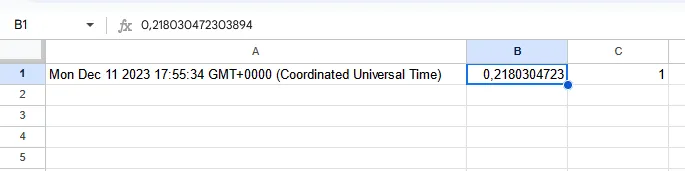
You can send data to Google Sheets from a val. You can collect data from incoming HTTP requests or from an HTTP endpoint on a schedule.
You have two options for authenticating with the Google Sheets API:
- Use Pipedream’s Accounts API to fetch a fresh OAuth access token at runtime.
- Use your own Google Cloud service account.
Use Pipedream’s Accounts API
Section titled “Use Pipedream’s Accounts API”Pipedream provides a workflow automation product for developers. Workflows are built as a sequence of steps — pre-built actions for thousands of APIs or custom code — triggered by an event (HTTP request, timer, when a new row is added to a Google Sheets, and more).
Pipedream also manages the OAuth token refresh process for apps like Google Sheets, exposing a fresh access token in the workflow runtime and the Accounts API. If you connect your Google Sheets account to Pipedream, you can use the Accounts API to fetch a fresh token within your val and use that token to authenticate requests to the Google Sheets API.
1. Sign up for Pipedream and retrieve your API key
Section titled “1. Sign up for Pipedream and retrieve your API key”Sign up for Pipedream and visit https://pipedream.com/settings/user. Find the API Key section and copy your key:
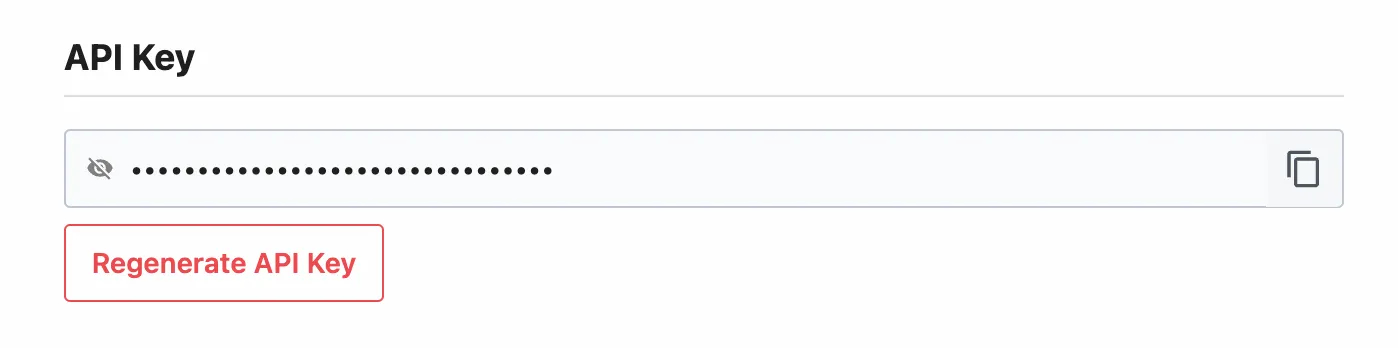
You’ll use this key to authenticate requests to the Accounts API, letting you fetch Google Sheets access tokens in your val.
2. Add that key as a Val Town environment variable
Section titled “2. Add that key as a Val Town environment variable”Add the API key as an environment variable in Val Town. In this example, we’ve named the environment variable pipedream_api_key:

3. Connect your Google Sheets account in Pipedream
Section titled “3. Connect your Google Sheets account in Pipedream”Visit https://pipedream.com/accounts. Click the Connect an app button at the top-right:

You’ll be directed through the OAuth authorization process to connect your Google Sheets account to Pipedream. Once you’ve connected your account, you’ll see it listed on the Accounts page.
4. Copy the account ID
Section titled “4. Copy the account ID”Click the … to the right of the account and Copy Account ID:

All account IDs are prefixed with apn_, so yours should look something like apn_abc123.
5. Note your sheet ID
Section titled “5. Note your sheet ID”In the Google Sheet you’d like to access, copy the sheet ID from the URL bar. It’s the long string of characters between /d/ and /edit.

6. Fetch a Google Sheets access token and use it in your val
Section titled “6. Fetch a Google Sheets access token and use it in your val”In your val, fetch a fresh Google Sheets access token from Pipedream and use it to authenticate requests:
import { fetchJSON } from "https://esm.town/v/stevekrouse/fetchJSON?v=41";
const accountID = "<YOUR ACCOUNT ID HERE>";const sheetID = "<YOUR SHEET ID HERE>";const baseURL = `https://sheets.googleapis.com/v4/spreadsheets/${sheetID}/values`;
async function fetchAccessToken() {  const response = await fetch(    `https://api.pipedream.com/v1/accounts/${accountID}?include_credentials=1`,    {      headers: {        Authorization: `Bearer ${Deno.env.get("pipedream_api_key")}`,      },    }  );
  if (!response.ok) {    throw new Error(`Error fetching access token: ${response.statusText}`);  }
  const { data } = await response.json();  return data.credentials.oauth_access_token;}
async function makeSheetsRequest(url, method, body = null) {  const accessToken = await fetchAccessToken();  const options: RequestInit = {    method,    headers: {      Authorization: `Bearer ${accessToken}`,    },  };
  if (body) {    options.body = JSON.stringify(body);  }
  return fetchJSON(url, options);}
// Write data to a sheetawait makeSheetsRequest(  `${baseURL}/A1:C1:append?valueInputOption=RAW`,  "POST",  { values: [[Date(), Math.random(), 1]] });
// Read data from a sheetconst data = await makeSheetsRequest(  `${baseURL}/A1:C1?majorDimension=ROWS`,  "GET");
console.log(data.values[0]);
Use your own Google Cloud service account
Section titled “Use your own Google Cloud service account”Authenticating with the Google Sheets API is a bit tricky, but we walk you through it below. It should only take a few minutes, and only needs to be done once.
Google recommends OAuth2 server to server authentication for bot-based applications. We will walk you through creating a Google Cloud service account, giving it access to one of your Google Sheets, and using its key to make authenticated requests to the Google Sheets API.
1. Create a Google Cloud service account
Section titled “1. Create a Google Cloud service account”Creating a Google Cloud service account is the recommended way to authenticate to the Google Sheets API.
a. Create a Google Cloud project
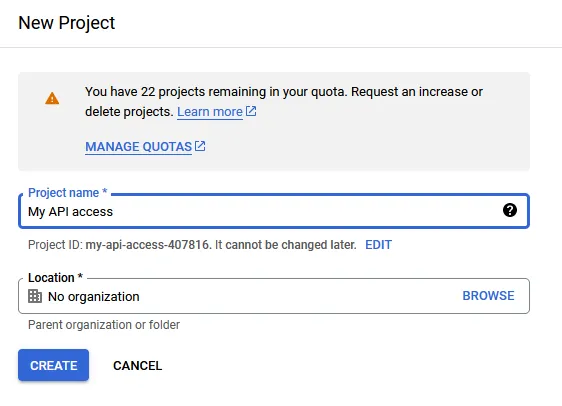
Section titled “a. Create a Google Cloud project”Open the Google Cloud console and click on the Select a project dropdown in the top left.

In the dialog that pops up, click on the New project button.

Choose any name for the project name, then click Create.
b. Enable the Google Sheets API
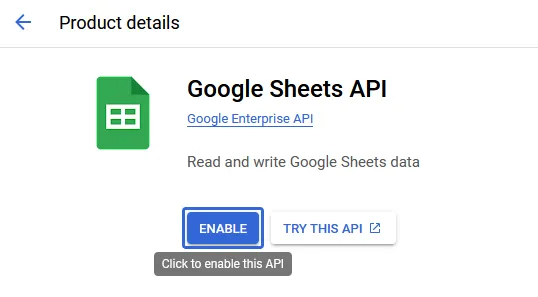
Section titled “b. Enable the Google Sheets API”Open the Google Sheets API page, then double check if the correct project is selected.
Once you have made sure that you are using the correct project, click Enable.
c. Create a service account
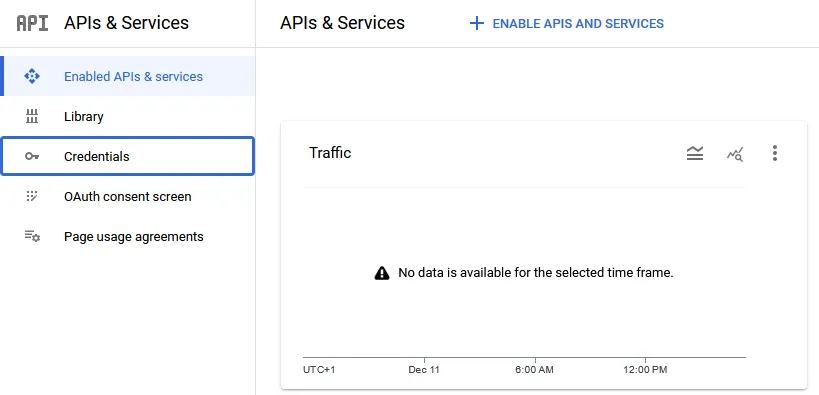
Section titled “c. Create a service account”On the left of the screen, click on Credentials.
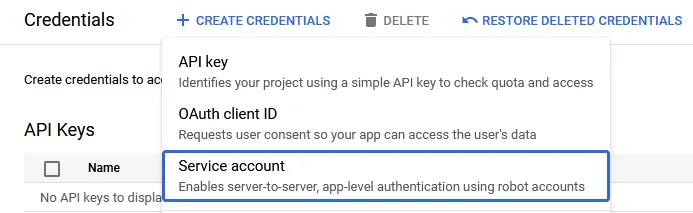
On the bar at the top, click on the Create credentials button, then select Service account.
Enter any name for the Service account name. You may also enter a description, as you see fit.
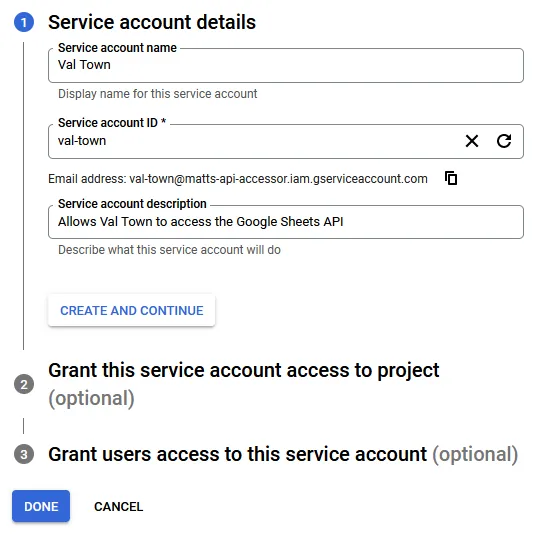
Save the email address for later, as it will be required to add the service account to a Google Sheet.
Click Done, as granting permissions to this service account is not required.
d. Create a service account key
Section titled “d. Create a service account key”To the right of the screen, open the menu on the newly created service account, and click Manage keys.
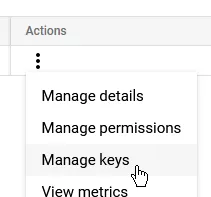
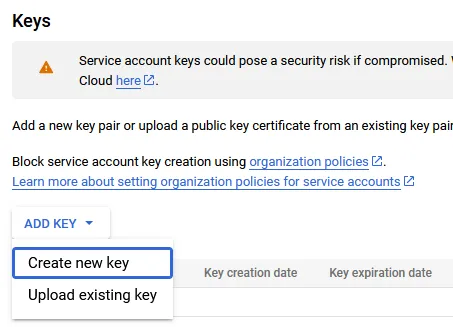
Click Add key, then Create new key.
Click Create key. Leave the type as JSON.
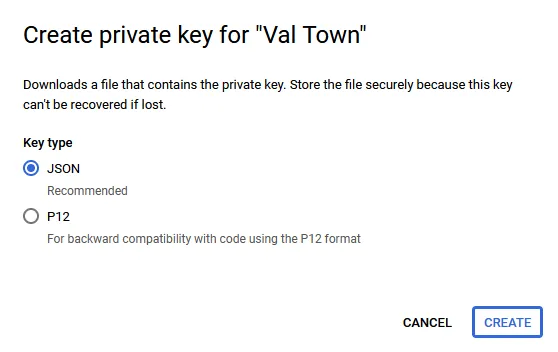
You will get a JSON file in your downloads directory.
e. Import the key into Val Town
Section titled “e. Import the key into Val Town”Open the service account key JSON file in a text editor, and copy the full contents.
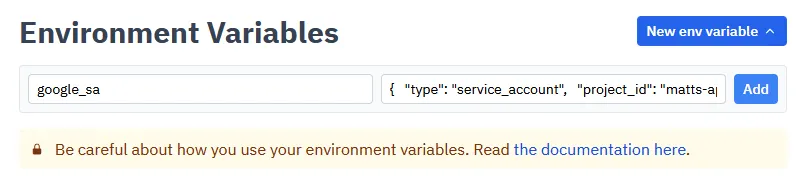
Open the Environment Variables page, then click New env variable.
Set the key to a name like google_service_account, then paste the entire JSON data into the value.
Once you are finished, click Add.
2. Create a sheet and grant access
Section titled “2. Create a sheet and grant access”Open Google Sheets and create a new empty sheet or open an existing one.
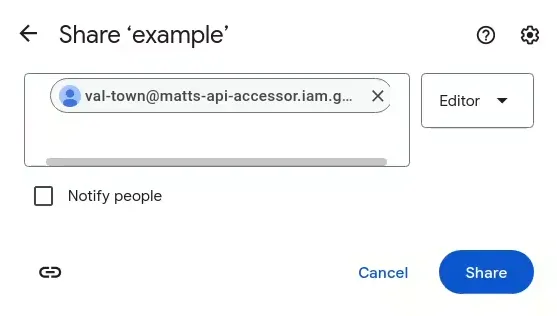
Click the Share button, then paste your service account’s email into the dialog. Make sure it is added as an editor, and optionally disable “Notify people”.
Lastly, copy the sheet ID from the URL bar. It’s the long string of characters between /d/ and /edit.
3. Create a val to send data
Section titled “3. Create a val to send data”To interact with the Google Sheets API, use the @mattx.gsheet_call wrapper.
This automates requesting an access token from Google to access the Google Sheets API.
It requires 4 arguments:
- The contents of your service account JSON file: in almost all cases, this should be retrieved from environment variables
using - for example,
Deno.env.get("google_service_account"). - The sheet ID
- The action to perform: This parameter is the part of the URL that comes after
https://sheets.googleapis.com/v4/spreadsheets/{spreadsheetId}/, along with any URL parameters that might be required (often this isvalueInputOption). For example, for spreadsheets.values.append, this will bevalues/{range}:append?valueInputOption=RAW, where{range}needs to be substituted for a range likeA1:C3. You can find a list of available actions in the Google Sheets API reference. - The request body: In the same example as above, the request body could be
{values: [[1, 2, 3]]}. Notice that this is an array of arrays, in line with the API documentation.
Here is an example of what the above looks like when put together:
import { gsheet_call } from "https://esm.town/v/mattx/gsheet_call";
// Appending to a sheetawait gsheet_call(  Deno.env.get("google_sa"),  "1LDgOhO6Fxg2wt5rGFH29t6XYbmKe6fXI7fLSFaqZkDA",  "POST",  "values/A1:C1:append?valueInputOption=RAW",  { values: [[Date(), Math.random(), 1]] });
// Reading from the top of the sheetconst data = await gsheet_call(  Deno.env.get("google_sa"),  "1LDgOhO6Fxg2wt5rGFH29t6XYbmKe6fXI7fLSFaqZkDA",  "GET",  "values/A1:C1?majorDimension=ROWS",  {});console.log(data["values"][0]);